
eduroam at the BIC Center
The BIC Center participates in eduroam to make its Island leading 90×90 Mbps internet service easily available to visitors.
What is eduroam?
eduroam (education roaming) is the secure, world-wide roaming access service developed for the international research and education community.
eduroam allows students, researchers and staff from participating institutions to obtain Internet connectivity across campus and when visiting other participating institutions by simply opening their laptop.
Click here for an interactive map of U.S. locations where you can eduroam.
Who can use eduroam?
In Michigan, many libraries, colleges and universities as well as some K-12 schools participate in eduroam. If you have access to the internet at a particpating institution, you’ll be able to connect at the BIC Center using the same credentials (and may not even need to log in). If you don’t connect automatically, just select eduroam from the available WiFi services and then log in as you do back at your participating library, school or college.
eduroam has gained momentum throughout the research and education community and is now available in over 100 territories. eduroam is available in thousands of locations across over 100 countries worldwide, from campuses to coffee shops. eduroam provides authenticated network access at any location where the service is enabled.
Each participating organization offering network access to authenticated users is able to apply its own filtering policies as long as it is clearly informing users about the filtering rules.
eduroam is based on the most secure encryption and authentication standards in existence today. Its security by far exceeds typical commercial hotspots.
eduroam requires the use of 802.1x which provides end-to-end encryption to ensure that your private user credentials are only available to your home institution. The certificate of your home institution is the only point you need to trust regardless of who operates any intermediate infrastructure.
Be aware though that when using the general Internet at an eduroam hotspot, the local site security measures at that hotspot will apply to you as well. For example, the firewall settings at the visited place may be different from those you are used to at home, and as a guest you may have access to fewer services on the Internet than you have at home.
eduroam allows any user from an eduroam participating site to get network access at any institution connected to eduroam. Depending on local policies at the visited institutions, eduroam participants may also have additional resources at their disposal.
The user credentials are kept secure because eduroam does not share them with the site you’re visiting. Instead they are forwarded to the user’s home institution, where they can be verified and validated.
The system uses a network of servers run by the institutions, and the participating National Research and Education Networks (NRENs) to securely route these requests back to your home institute. All this happens seamlessly and virtually instantly – all thanks to eduroam.
How do I get connected?
If your device doesn’t connect automatically, follow the steps on the tab for your device below to get the job done. If you have difficulty, your participating institutions tech support for assistance. Or, you can use the BIC Center’s guest network (“BIC Center Guest”). Check with our Front Desk if you need assistance with that.
- Open the settings on your computer and select Network and Internet.
- Under “Show Available Networks,” select eduroam.
- The username is your student email.
- The password will be your student email password.
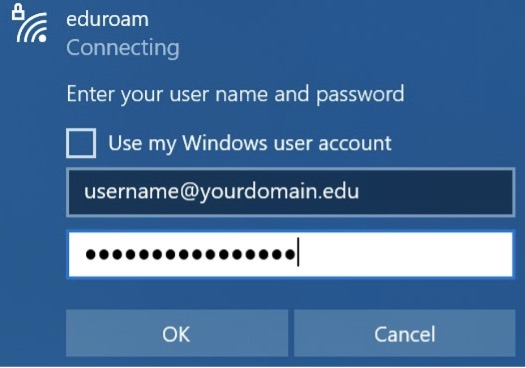
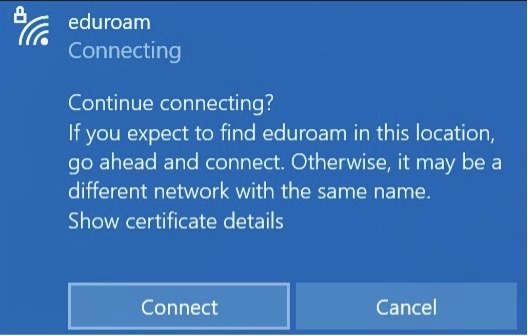
- Click “Connect” on the dialogue box that asks if you want to continue connecting. You should now be connected to eduroam.
If you have difficulty, your participating institutions tech support for assistance. Or, you can use the BIC Center’s guest network (“BIC Center Guest”). Check with our Front Desk if you need assistance with that.
- Make sure that you are running OS 10.9.5 or later on your computer.
- Click on the WiFi icon in the upper right corner of your desktop.
- Select eduroam as the network. Your computer will prompt you for a username and password.
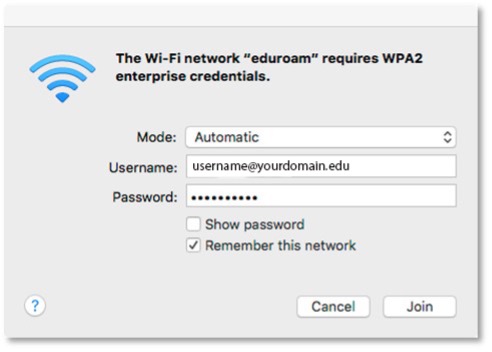
- The username is your student email.
- Your password will be your student email password.
- Click “Join” to join the network.
- Click “Continue,” when prompted, to accept the security certificate.
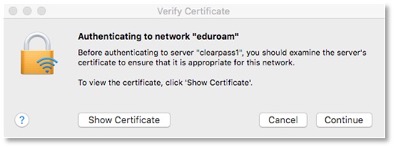
- A computer administrator name and password will be required to install the certificate – this is a username and password on the computer, not one that is provided by or associated with your school. It will be the same username and password that you normally use to install apps and software on the device.
If you have difficulty, your participating institutions tech support for assistance. Or, you can use the BIC Center’s guest network (“BIC Center Guest”). Check with our Front Desk if you need assistance with that.
- Open the “Settings” app.
- Under “Wi-Fi” select the network called “eduroam”.
- Your device will prompt you for your username and password
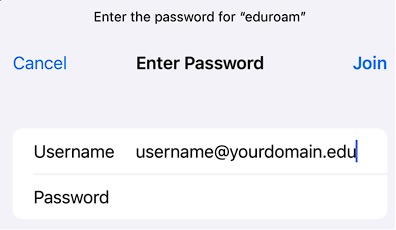
- The username is your student email.
- Your password will be your student email password, and click Join.
- Click “Trust,” when prompted, to accept the security certificate.
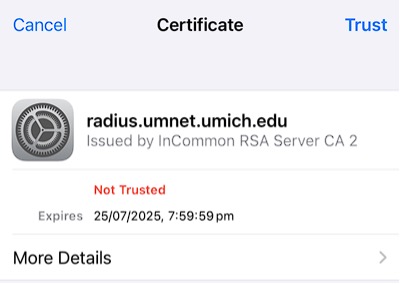
- You should now be connected to eduroam and have access to the internet.
If you have difficulty, your participating institutions tech support for assistance. Or, you can use the BIC Center’s guest network (“BIC Center Guest”). Check with our Front Desk if you need assistance with that.
- Go to “WiFi” in Settings.
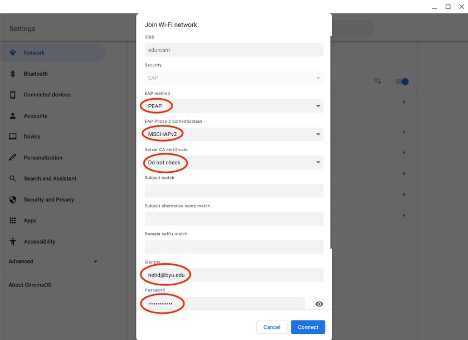
- When prompted, use these configuration settings to connect to eduroam:
- EAP Method: select “Protected EAP” or “PEAP”
- Phase 2 Authentication: select “MSCHAPv2”
- Server CA certificate:
- Chromebooks and Androids: Select “Do not validate” or “Do not check” from drop-down menu.
- Google Pixel or Motorola phone: select “Use system certificates”
- Domain Suffix Match:
- Chromebooks and Androids: Leave blank.
- Google Pixel or Motorola: your schools domain (exp: thedps.org).
- Username/Identity: The username is your student email. It needs to be formatted as <yourusername>@yourdomainname.
- Password: The password will be your email password.
- Anonymous identity: Leave blank.
- All other fields: Leave blank.
- Press “Connect.” You should now be connected to eduroam.
If you have difficulty, your participating institutions tech support for assistance. Or, you can use the BIC Center’s guest network (“BIC Center Guest”). Check with our Front Desk if you need assistance with that.
Where else can I connect?
Other Island locations are coming soon. Expect to find eduroam at the library, school and municipal facilities (including the marinas). You can use eduroam worldwide. There’s a handy app that can help you find locations where you can connect. Download it from Google Play or Apple’s app store by searching for ‘eduroam Companion.’ Once installed, you can use it to easily locate the closest hotspot.
Upcoming Events








 and then